Accessing your project workspace
How to activate and launch your project workspace
Launch your project workspace
To enter your SEAD project workspace you need to:
Activate your virtual machine
Each project Virtual Machine (VM) is displayed on individual tiles, with your “Active” VM appearing at the top above those that are “Locked”. For more information about your VMs, refer to Functions in my projects.
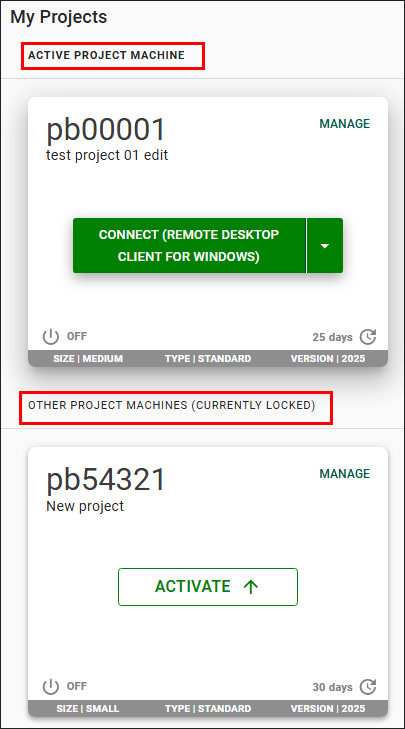
Each project has a separate VM and you can only access one project VM at a time. If your machine is already available to launch, skip to Launch your virtual machine.
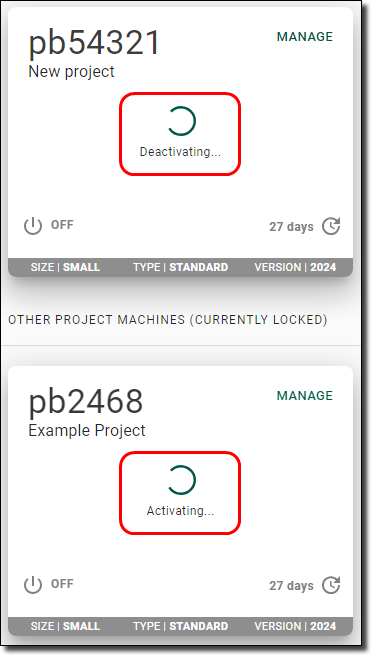
- If not, click the ‘Activate' button as shown below and wait until the ‘Connect’ button appears.
- If your machine shows a status other than ‘Connect’ or ‘Activate’ you must rebuild the VM first. Refer to Virtual machine management options for more information.
Click on the ‘Activate’ button of the VM you want to launch.
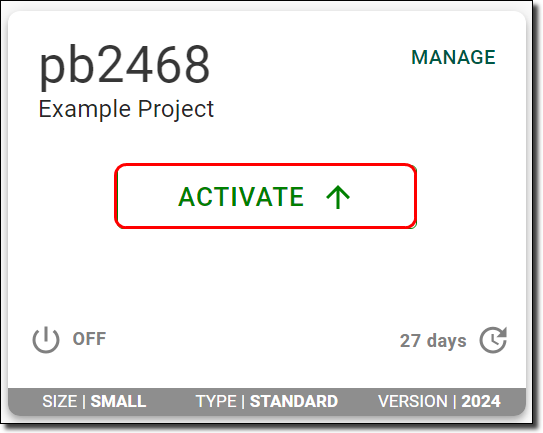
If you have a VM for another project that is currently active, this logs you out of your other session. If you have a program running in your workspace using another VM, this will stop the program. You can only run multiple VMs if you have requested to use offline local disk space.
Launch your virtual machine
Before launching your VM, you can choose your preferred connection. You are required to install the Windows App (for Windows or MacOS) or Remote Desktop client (Windows users only), or have your organisation do so to be able to connect to your VM. All browser-based applications, including Azure Virtual Desktop web client and the Windows App web client are disabled and no longer available for connecting to your virtual machine.
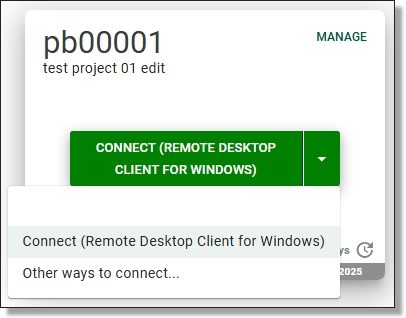
Connect using Remote Desktop Client for Windows
If you are connecting to the 'Remote Desktop Client' version of AVD, contact your SEAD administrators to ensure that your IT department has enabled the correct networking addresses.
If you intend to use the 'Remote Desktop client' on your organisation's workspace, your internal IT department will need to make it available to you.
The latest version of 'Remote Desktop client (MSI)' for Windows, is available on the Microsoft website. Ensure you download and install the correct version for your device.
Note: The Remote Desktop Client will reach end of support on March 27, 2026. Transition to the Windows App to ensure continued access to SEAD.
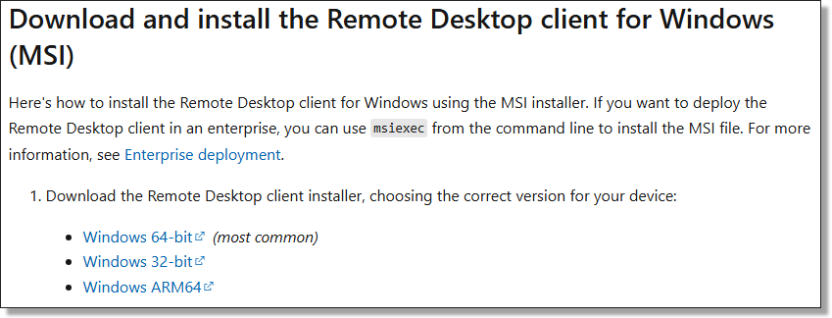
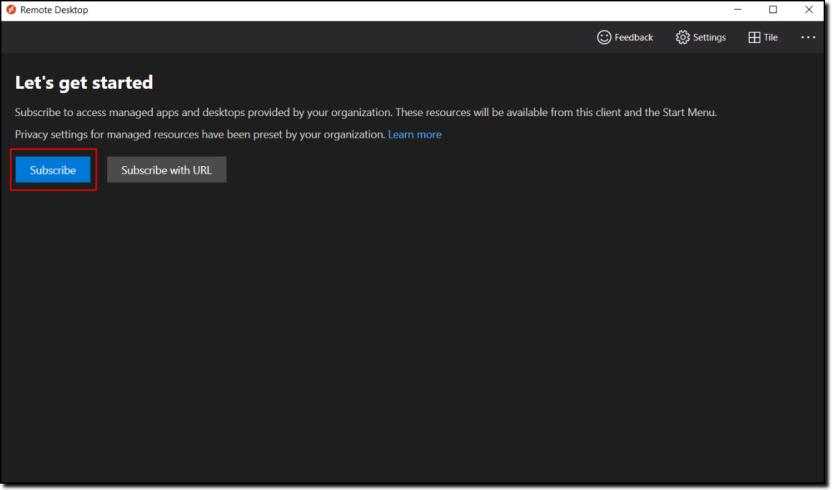
Once you have been provided access by your organisations IT department, or have downloaded, installed and opened the application, click ‘Subscribe’ as shown below.
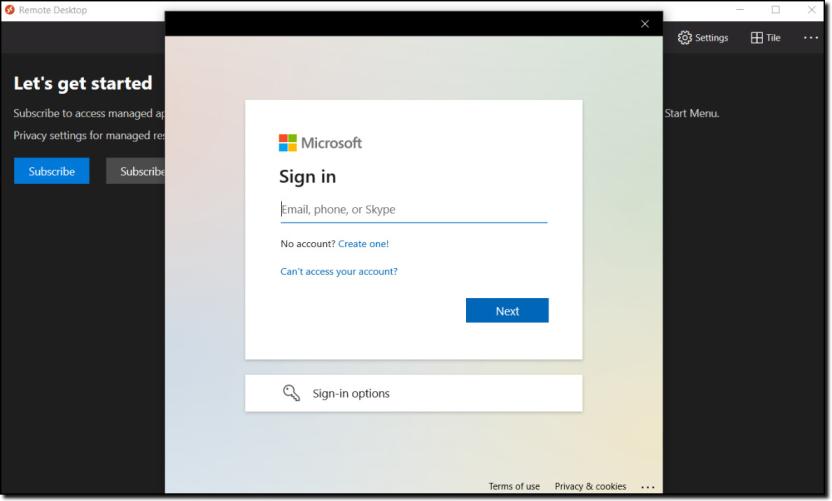
You will then be shown a new window that allows you to log into your SEAD account using your SEAD credentials.
Upon a successful login, you will be shown all your available VMs. If you can’t see the VM that you want, it may be dormant and would require a rebuild. Rebuilds need to be completed through the SEAD web portal.
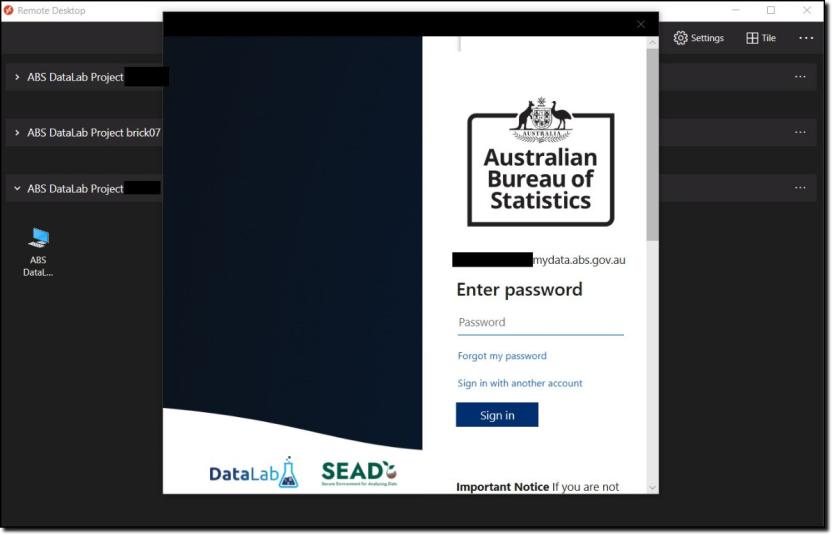
If you have access to multiple projects you may be shown multiple tabs, one for each project as shown in the image below.
Note: If you wish to use multi-display, right click on your VM icon, click ‘Settings’, and turn off ‘Use default settings’. You should now see options for how you would like to display your VM.
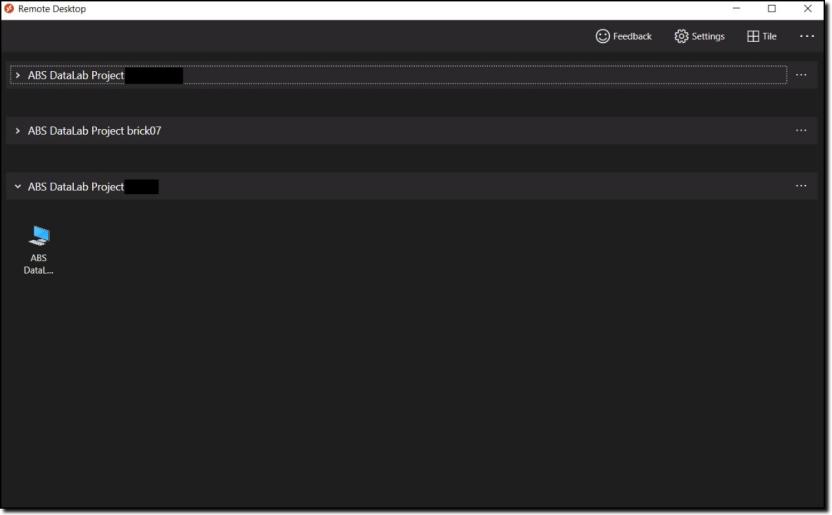
Click into one of the computer icons and you will be taken to a login screen to reconfirm your identity, before access is granted to enter your VM. This may not appear if you have recently entered your credentials, through a similar window.
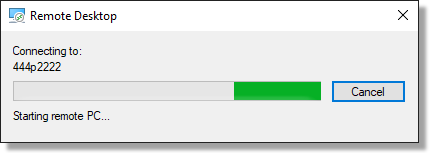
The below loading bar should briefly appear.
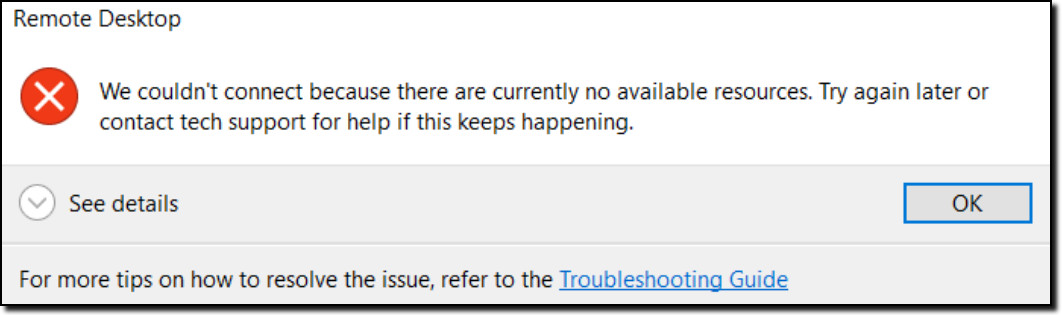
If, instead of the second login prompt, you receive a message as shown in the below image, then either your machine is not the active machine or it is not using the version ‘2025’ or similar. If your desktop session does not start, repeat step 1 to Activate your virtual machine from the SEAD web portal, and check that the version at the bottom of your VM says ‘2025’ or similar.
Image
Description
Error message that reads:
"We couldn't connect because there are currently no available resources. Try again later or contact tech support for help if this keeps happening."
You will then be presented with another login screen for the VM itself.
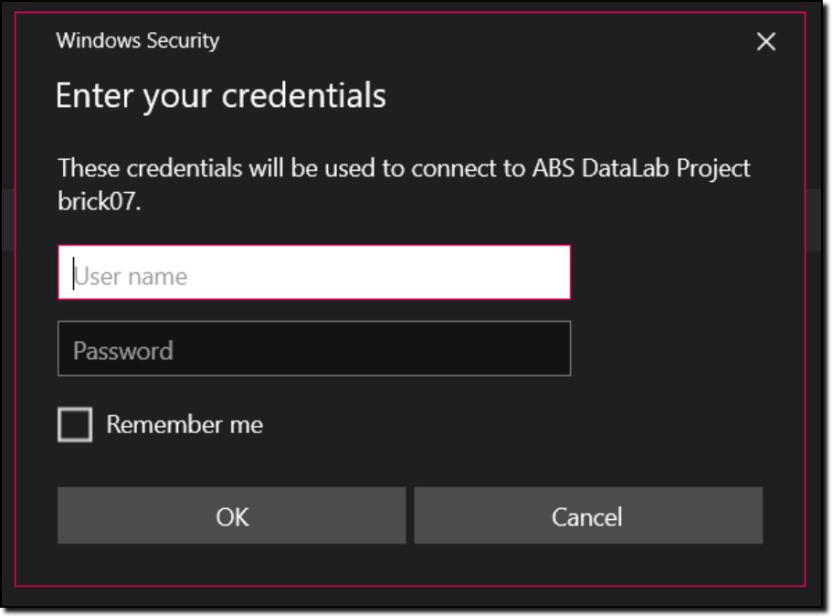
By logging in you agree to these conditions:
Image
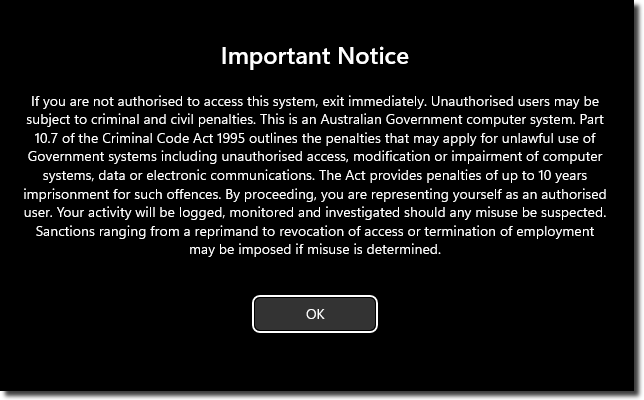
Description
Important Notice
If you are not authorised to access this system, exit immediately. Unauthorised users may be subject to criminal and civil penalties.
This is an Australian Government computer system. Part 10.7 of the Criminal Code Act 1995 outlines the penalties that may apply for unlawful use of Government systems including unauthorised access, modification or impairment of computer systems, data or electronic communications. The Act provides penalties of up to 10 years imprisonment for such offences. By proceeding, you are representing yourself as an authorised user and acknowledge you have read and agree to comply with the Responsible Use of ABS Microdata User Guide. Your activity will be logged, monitored and investigated should any misuse be suspected.
Sanctions ranging from a reprimand to revocation of access or termination of employment may be imposed if misuse is determined.
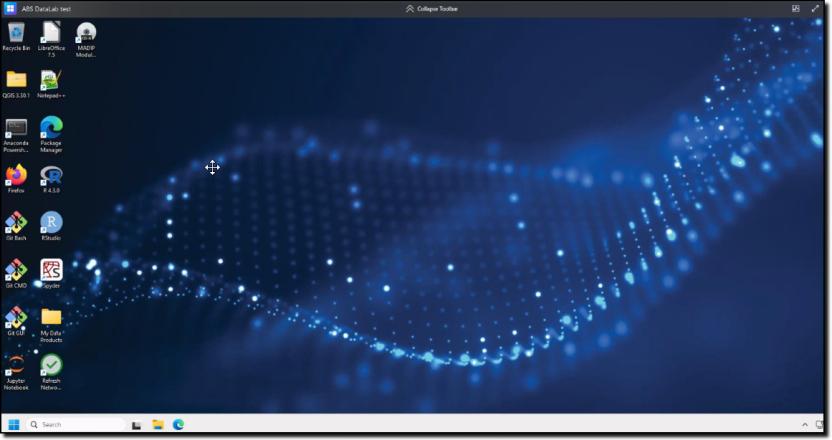
You will then have a new window open on your computer displaying your VM workspace.

For more information on navigating the workspace, refer to Navigating your project workspace.
Note: VMs continue to incur running costs if the VM has not been stopped, even when not in use. The ABS recommends users shut down their machine during periods of inactivity to avoid unintended charges. Disconnecting, or closing your machine window, is insufficient. VMs are required to be shut down completely as per the VM management options to avoid continued running costs.
Connect using Windows App for Windows
Download the Microsoft Windows App from the Microsoft Windows App Store.
Note: If you intend to use the Windows App on your organisation's workspace, you will need to contact your local IT department to make it available to you.
Once you have been provided access by your organisations IT department, or have downloaded, installed and opened the application, select sign in.
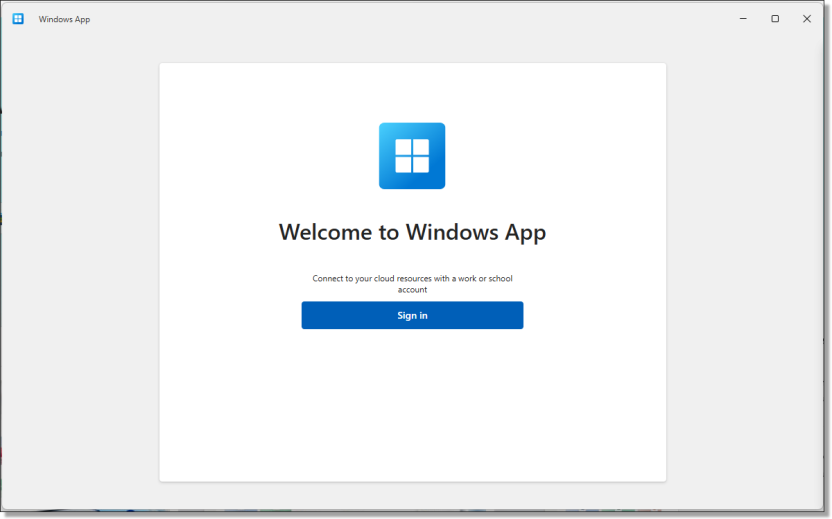
Sign in using your SEAD username. Once your Username has been entered, you will be navigated to the ABS SEAD branded log in screen to enter your password.
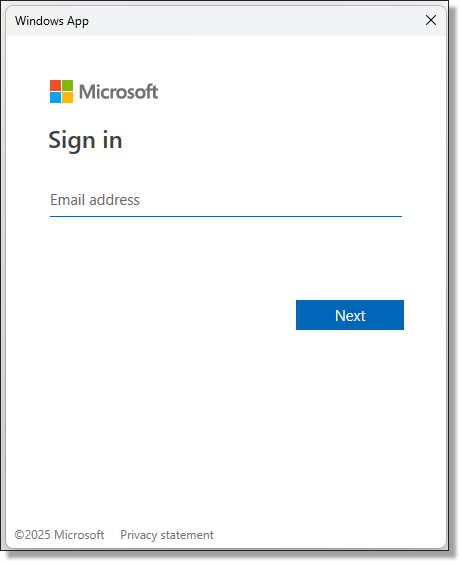
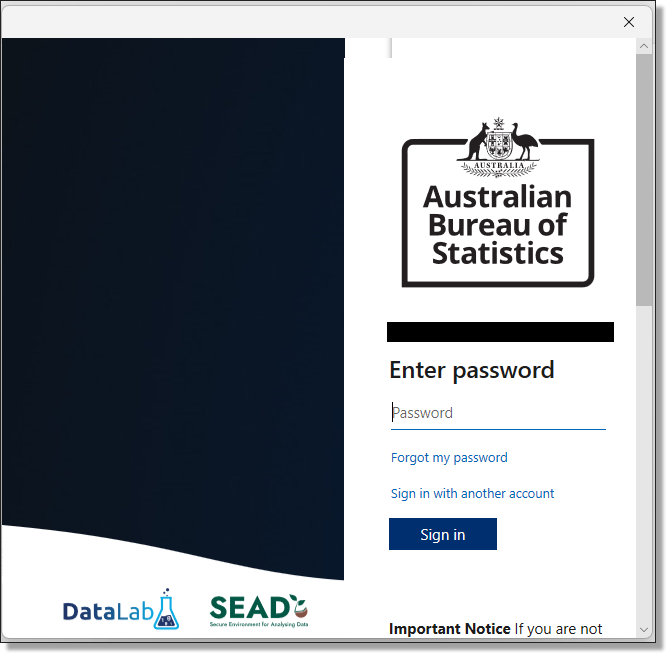
Once you've successfully logged in, you will be able to see all of your available VM's. If you can’t see the VM that you want, it may be dormant and would require a rebuild. You will be required to connect to the SEAD web portal to activate or rebuild your VM.
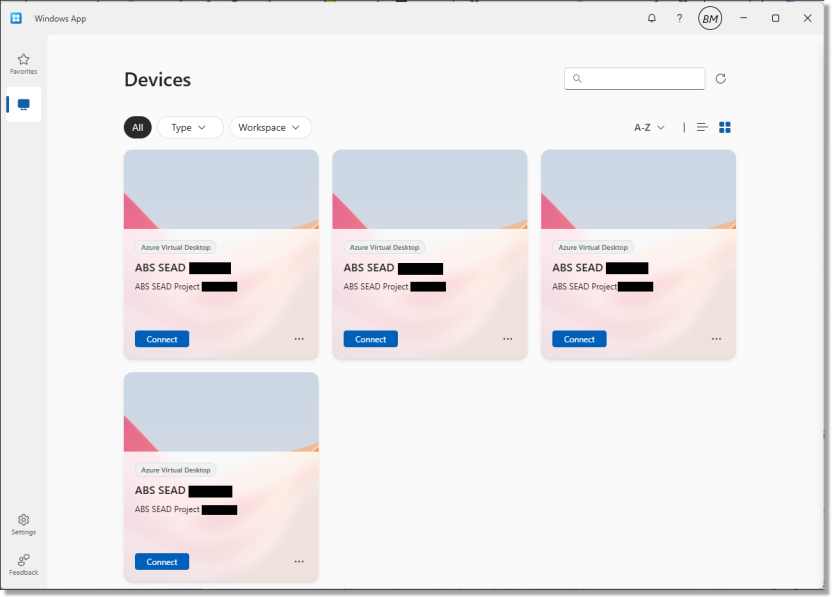
Select 'Connect' on the device tile you want to access, noting only the Active VM as displayed on the SEAD web portal will allow you to progress into your workspace.
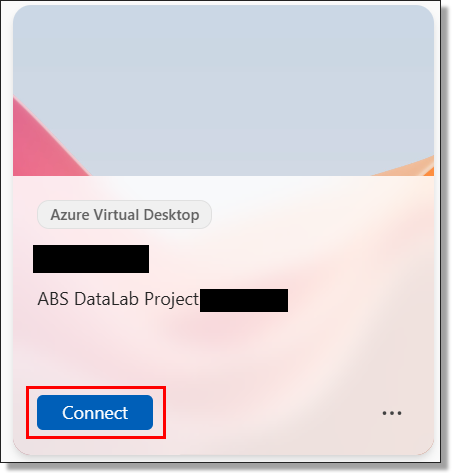
At this point, you may be required to enter your SEAD credentials again to launch the VM, if you have not logged in recently.
When attempting to connect to your VM you may encounter the following error. If so, please confirm from the SEAD web portal that the VM you are trying to launch is 'Active' and does not require a rebuild.
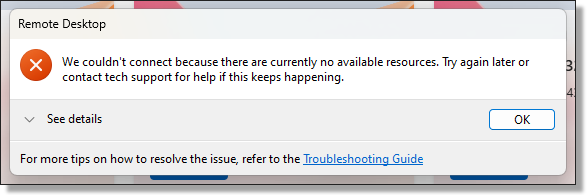
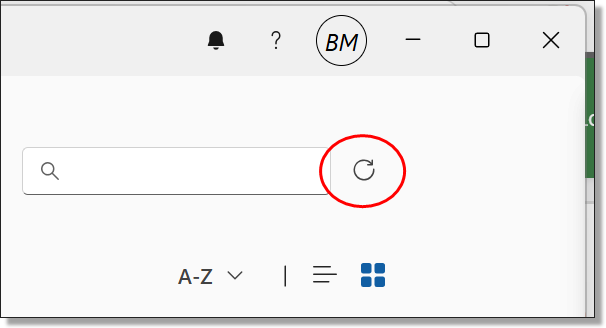
If changes have been made to the VM in the SEAD web portal, you may need to refresh the available resources in the Windows App for changes to take effect.
After successfully Connecting to the VM you will then be presented with another login screen for the VM itself. Again, you may be required to enter your SEAD credentials.
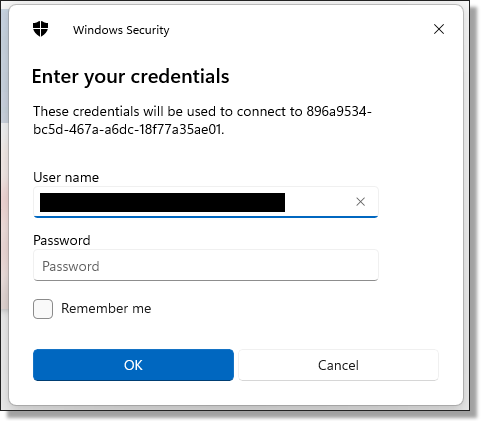
By logging in you agree to these conditions outlined on the important notice:
Image
Description
Important Notice
If you are not authorised to access this system, exit immediately. Unauthorised users may be subject to criminal and civil penalties.
This is an Australian Government computer system. Part 10.7 of the Criminal Code Act 1995 outlines the penalties that may apply for unlawful use of Government systems including unauthorised access, modification or impairment of computer systems, data or electronic communications. The Act provides penalties of up to 10 years imprisonment for such offences. By proceeding, you are representing yourself as an authorised user and acknowledge you have read and agree to comply with the Responsible Use of ABS Microdata User Guide. Your activity will be logged, monitored and investigated should any misuse be suspected.
Sanctions ranging from a reprimand to revocation of access or termination of employment may be imposed if misuse is determined.
You will then have a new window open on your computer displaying your VM workspace.
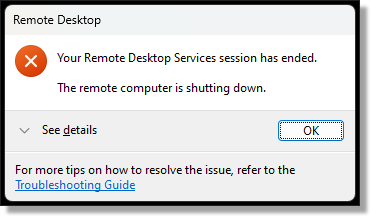
Upon shutting down your VM you will receive the following confirmation message. Ensure that you shut down your VM once your analysis is complete to avoid running costs.
Connect using Windows App for MacOS
Download the Microsoft Windows App from the MacOS App Store.
Use of SEAD on MacOS is only supported through the Windows App for Mac. Contact your SEAD administrators to ensure that your IT department has enabled the correct networking addresses.
If the Windows App for Mac isn’t already available in your organisation’s workspace, your IT team may need to enable it.
Once you have access, open the app, select the + icon in the top right, choose ‘Add Work or School Account’, and sign in with your SEAD credentials.
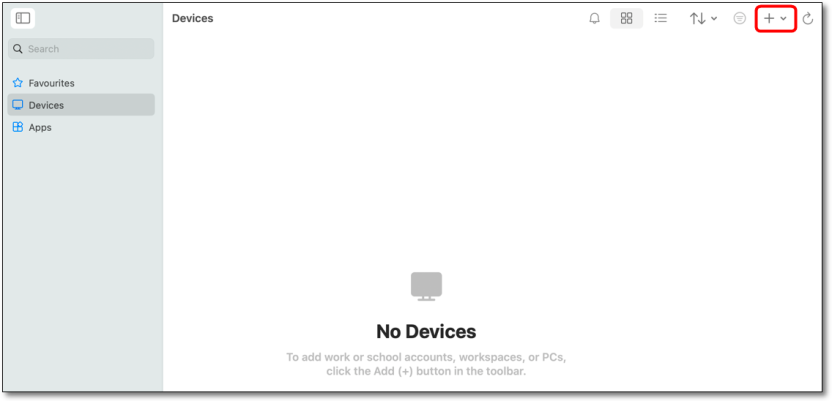
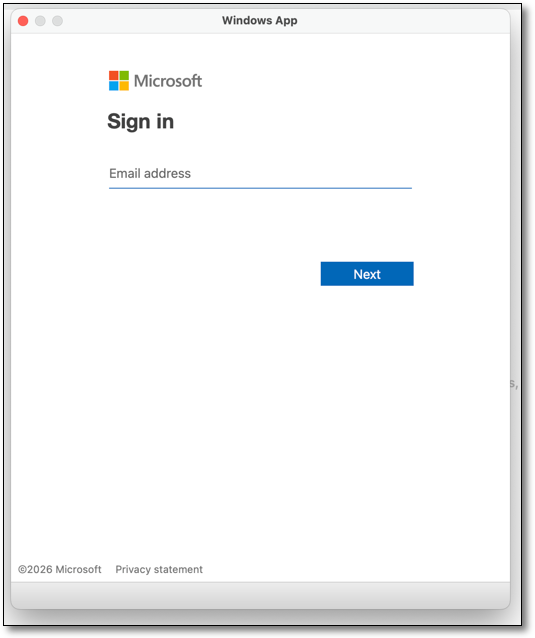
Once you've successfully logged in, you will be able to see all of your available VMs from the Devices page. If you can’t see the VM that you want to access, it may be dormant and would require a rebuild. You will be required to access the SEAD web portal to activate or rebuild your VM as this cannot be managed through the Windows App.
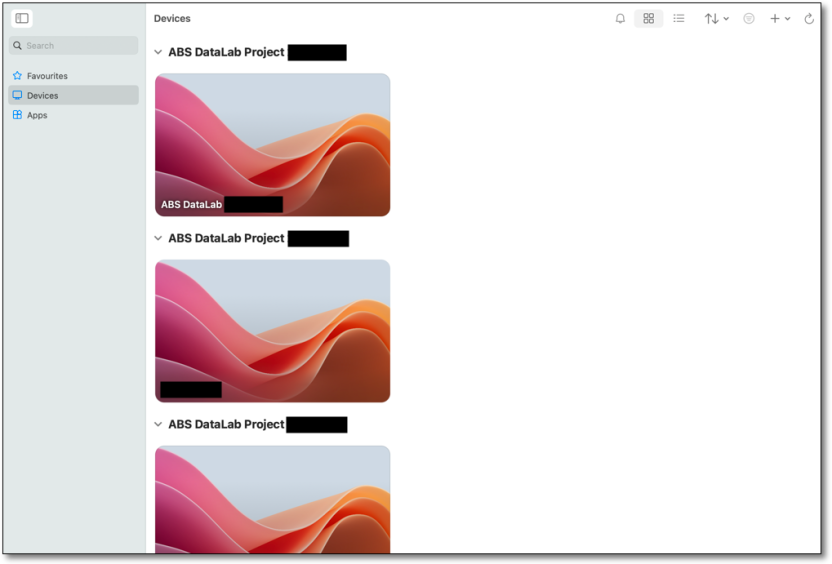
Double-click on the tile for the VM that you want to access, noting only the 'active' VM as displayed in the SEAD web portal will allow you to launch your workspace.
At this point, you may be required to enter your SEAD credentials again to launch the VM, if you have not logged in recently.
When attempting to connect to your VM you may encounter the following error. If this occurs, check the SEAD web portal to ensure that the VM you are trying to launch is 'active' and does not require a rebuild.
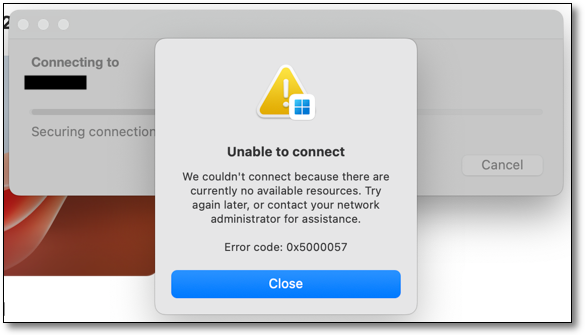
If changes have been made to the VM in the SEAD web portal, you may need to refresh the available resources in the Windows App for changes to take effect.
After successfully Connecting to the VM you will then be presented with another login screen for the VM itself. Again, you will be required to enter your SEAD credentials.
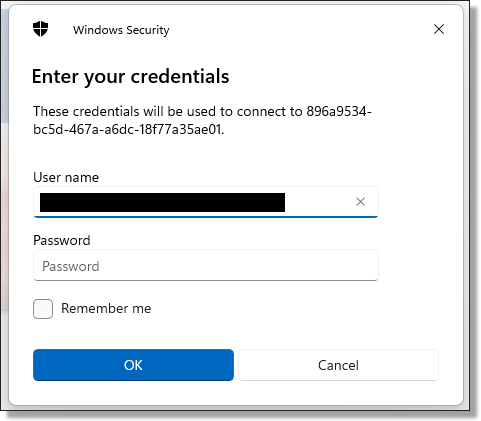
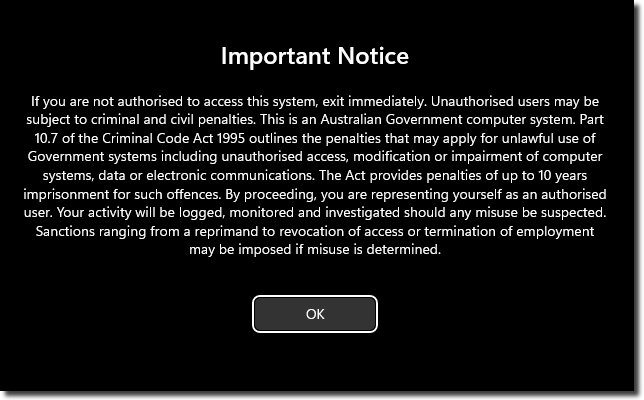
By logging in to SEAD you agree to these conditions outlined on the important notice:
Image
Description
Important Notice
If you are not authorised to access this system, exit immediately. Unauthorised users may be subject to criminal and civil penalties.
This is an Australian Government computer system. Part 10.7 of the Criminal Code Act 1995 outlines the penalties that may apply for unlawful use of Government systems including unauthorised access, modification or impairment of computer systems, data or electronic communications. The Act provides penalties of up to 10 years imprisonment for such offences. By proceeding, you are representing yourself as an authorised user and acknowledge you have read and agree to comply with the Responsible Use of ABS Microdata User Guide. Your activity will be logged, monitored and investigated should any misuse be suspected.
Sanctions ranging from a reprimand to revocation of access or termination of employment may be imposed if misuse is determined.
You will then have a new window open on your computer displaying your VM workspace.
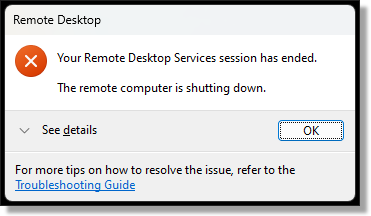
Upon shutting down your VM you will receive the following confirmation message. Ensure that you shut down your VM once your analysis is complete to avoid running costs.
For more information on using the workspace refer to Navigating your project workspace.